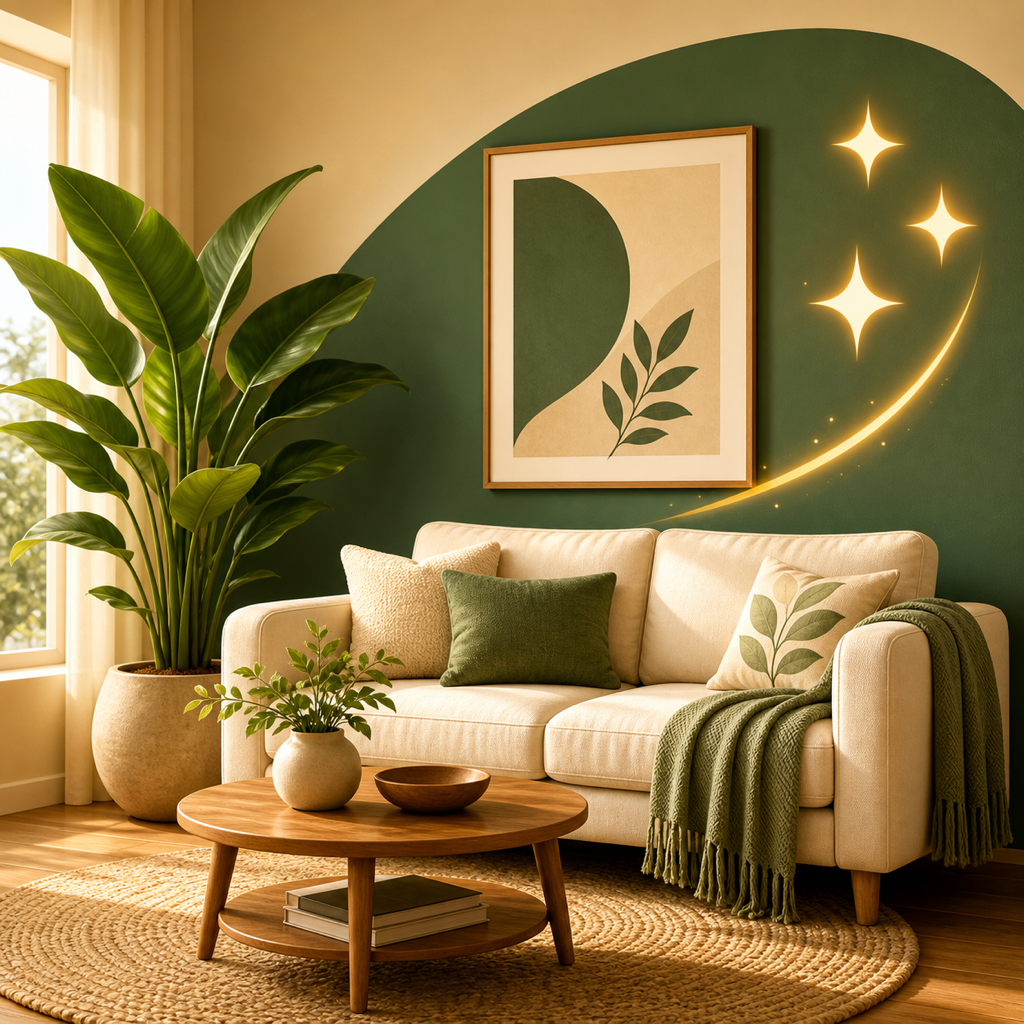
Upload one photo of the empty room to an AI room tool, generate a few different styles, and compare them side by side. You can see the options before you buy any furniture. Treat each result as a visual concept, then check sizes with a tape measure before you order a single piece.
What you need before you start
You need one phone photo of the empty room, a tape measure, and a rough idea of the furniture you're considering.
Decide the room's purpose first. A living room for TV and seating needs a sofa, a rug, lamps, and maybe curtains and side tables. Naming that up front keeps your prompts and style choices focused.
Step 1: Take a wide, eye-level photo
Photo checklist:
- Stand in the doorway or a corner.
- Hold the phone upright at about chest height.
- Include as much floor as possible so the tool can read the layout.
- Shoot in good light.
Results may vary by photo, lighting, and instructions. If the first render looks off, retake the photo and try again.
Step 2: Choose a tool and upload the photo
Several tools can do this job, and they work a little differently.
| Tool | What it does |
|---|---|
| RoomRevamp | Restyles a room photo in preset styles or from a custom text description, with side-by-side compare. |
| Remodel AI | Offers 30+ interior styles from one photo, plus exterior and garden styles. |
| House AI | Restyles or remodels interiors, exteriors, or gardens from an uploaded photo. |
| IKEA home design tool | Shows how IKEA furniture looks together in your space before you buy. |
| Planner 5D | Uses 3D rendering so you can see a design virtually before starting the project. |
Step 3: Generate three style directions
Pick three styles that are clearly different, such as Scandinavian, Japandi, and Industrial. Similar styles won't teach you much.
You can also describe the look in your own words and name what the room needs: sofa, rug, lamps, curtains, tables. Try a few variations before settling.
Step 4: Compare and save what you like
Put the renders side by side. Note which pieces show up in your favorite: sofa shape, rug size, lighting, color palette.
Save the ones you like and share them with a partner, roommate, or designer for feedback. Use the render as a shopping reference, not a shopping list.
Step 5: Check the preview against real measurements
The AI doesn't measure your room. It estimates proportions from the photo, so a sofa that looks right may be too big.
It also doesn't know which way a door opens. A console behind a door leaf looks fine in a photo and blocks the door in real life.
Take the numbers from the render to a tape measure before you order. Generated pieces may be out of scale or unavailable to buy, and the images are for inspiration and visualization, not construction, safety, or code decisions.
Worked example: empty living room to three directions
- Start with one wide photo of a bare living room, floor visible.
- Generate a light Scandinavian version, a warm Japandi version, and a darker Industrial version.
- Choose the layout and palette you like.
- Measure the wall and floor space for the sofa and rug shown.
- Shop for pieces that match those dimensions.
FAQ
Can I use a photo of a lived-in room?
Some tools accept both empty and lived-in spaces, so you can also test a restyle of a room that already has furniture in it.
Will the furniture in the render be available to buy?
Not necessarily. Generated items can be unavailable to purchase, so treat them as a style guide and look for real pieces that match the shape, scale, and color.